
Introduction
Restricted calls are calls that arrive with the caller's number hidden, so your screen shows words like Restricted, Private, Blocked, or Unknown instead of digits. Many people assume these calls are scams, but hiding a number is a normal phone feature with everyday uses. Knowing what the label really means helps you decide whether to answer, ignore, or call back. Most restricted calls come from ordinary people and organizations.
This guide from Ringflow explains what restricted calls are, how to block your own caller ID, and where that blocking does not work. You will also see how to screen unknown callers, how restricted calls differ from spoofed ones, and what businesses should do about caller ID. Each section stands alone, so jump to the part you need. We keep the steps short, so you can act on them straight away.
What Restricted Calls Mean
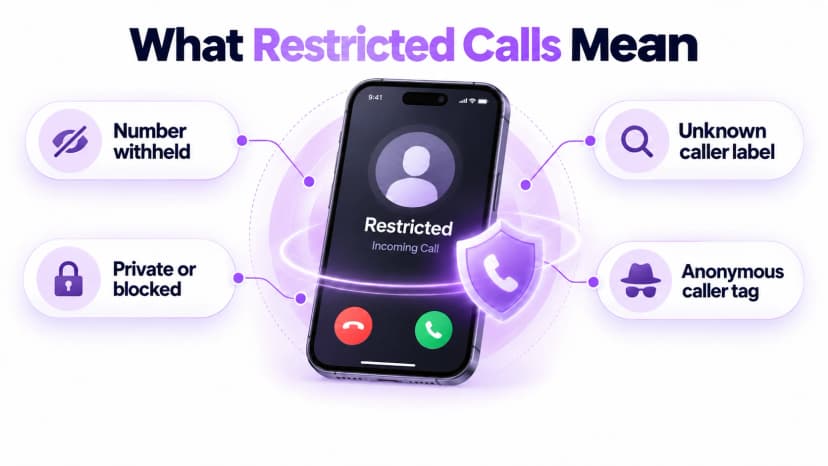
Restricted calls are calls where the caller's number was withheld before the call reached you. The formal name is calling line identification restriction, and it can be switched on by the caller, their carrier, or a business phone system. Because the number never arrives, your phone has nothing to display, so it shows a label instead. Different phones and carriers use different words for the same thing, and the label alone tells you very little about who is calling.
Caller ID can carry a name as well as a number, a feature covered in our guide to CNAM. Restricted calls hide both, which is why even a saved contact may appear as unknown. The FCC says blocking your own number is legal and is not spoofing. It simply means the caller chose not to share the number, and that choice has many ordinary reasons, from privacy to safety.
- Restricted: the number was withheld by the caller or the network.
- Private or Blocked: other labels for the same hidden number.
- Unknown: sometimes hidden, sometimes just not identified.
- Anonymous: another label that some carriers and phones use.
- Not spoofing: nothing false is displayed, the number is simply absent.
- Legal: the FCC says blocking your own number is permitted.
- Reasons: privacy, safety, and work calls from a personal phone are common causes.
- Context: judge restricted calls by what they ask of you, not by the label.
- Check: ask the caller to identify themselves before you share any details.
How to Block Your Own Caller ID
The simplest method is a per-call code. Dial *67, then the full ten-digit number, then press call. The person you reach sees a label such as Private or Anonymous instead of your number. Verizon, AT&T, and T-Mobile all describe this code, so it is the first thing to try when you want one call to go out without your number. It takes only a few seconds to add.
If your line is blocked permanently, some carriers offer *82 to show your number for a single call. Verizon documents it, but other carriers may not, so check your own carrier's instructions before relying on it. You can also change the setting in your phone's call settings, though menu names vary by phone and software version. Look in the phone app's settings for the caller ID option.
- One call: dial *67 before the ten-digit number.
- Unblock once: some carriers use *82 to reveal your number for a call.
- Phone settings: look for a show my caller ID option in call settings.
- Carrier help: ask your provider about permanent blocking.
- Test it: call a friend to see how your number appears.
- Remember: the person you call can still see that a call arrived.
- Business lines: many phone systems, including Ringflow, can set one caller ID for every outbound call.
- Landlines: many landline plans offer similar blocking, so ask your provider.
Where Caller ID Blocking Does Not Work
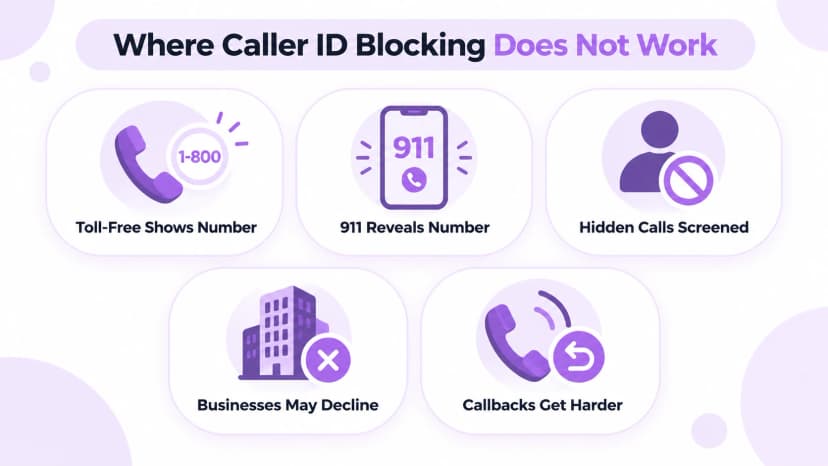
Blocking has limits. The *67 code and permanent blocking do not apply when you call a toll-free number or 911. Verizon, AT&T, and T-Mobile all say these calls go through with your number visible, because those services need to identify the caller. A business toll-free line or an emergency operator will see your number whatever your settings say. That is by design, and it applies to every plan.
Some businesses also refuse to answer calls with hidden numbers, and some phones send them to voicemail. If you need a call to connect, consider showing your number or leaving a voicemail with a callback number. A hidden number can also make a return call impossible, so plan for how the other person can reach you. A short message with your name usually solves the problem.
- Toll-free numbers: your number is passed through regardless.
- 911: emergency calls are not blocked by caller ID settings.
- Screening: some people send hidden calls straight to voicemail.
- Businesses: some companies will not accept calls from hidden numbers.
- Callbacks: a hidden number makes a return call harder.
- Alternative: leave a short message that includes your number.
- Plan ahead: decide in advance whether a particular call needs your number visible.
- Exceptions: rules can differ by carrier, so confirm the details for your plan.
Screening Restricted and Unknown Callers
On an iPhone, the Screen Unknown Callers setting in the Phone app can silence calls from numbers not in your contacts and send them to voicemail. It can also ask the caller to say why they are calling. The exact menu path has changed across iOS versions, so search your settings for the name if you cannot find it. The setting is off by default, so you have to switch it on.
Android works differently on different phones. The Google Phone app has a Filter spam calls setting, and Pixel phones add Call Screen, which can answer unknown calls for you and show what the caller says. Your phone's maker and Android version decide what you see. A voicemail from a real caller usually tells you whether to call back. Spam callers rarely leave a message.
- iPhone: use Screen Unknown Callers in the Phone settings.
- Android: try Filter spam calls in the Google Phone app.
- Pixel: Call Screen can screen unknown calls for you.
- Voicemail: let unknown calls go there, or to Ringflow voicemail, and listen later.
- Contacts: save trusted numbers so they ring through.
- Block list: block a number once you decide it is unwanted.
- Review: check your silenced calls now and then in case you missed one.
- Alerts: turn on spam warnings so risky calls are flagged before you answer.
Restricted Calls vs Spoofed Calls
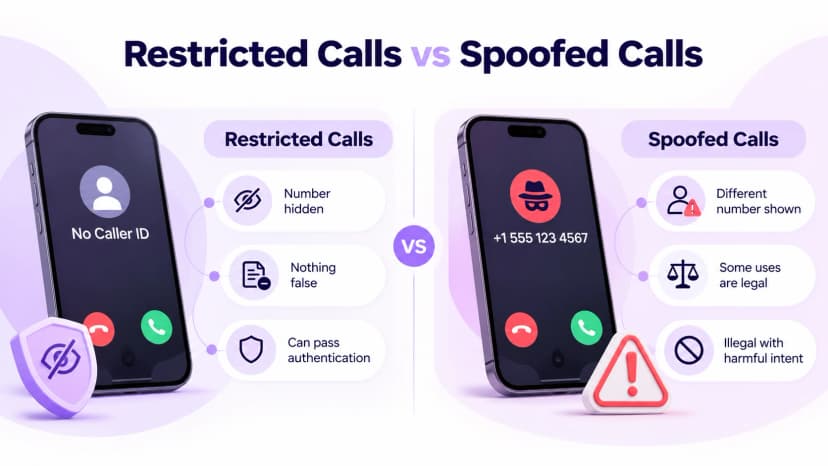
Restricted and spoofed calls are often confused, but they are different. Restricted calls hide the number and show nothing false. A spoofed call displays a number that is not the caller's real one. The FCC says spoofing is illegal when done with intent to defraud, cause harm, or wrongly obtain something of value, though some uses, such as a doctor showing an office number, are legal.
Carriers fight illegal spoofing with call authentication. Our STIR/SHAKEN call authentication explainer shows how networks verify that a displayed number is genuine. Restricted calls can still pass through that process, because the network knows who placed them. They just do not display the number to you, which is the whole difference. Treat unexpected requests for money or codes with care either way.
- Restricted: the number is hidden and nothing false is shown.
- Spoofed: a different number is displayed in place of the real one.
- Legal spoofing: some uses, like a doctor showing an office number, are allowed.
- Illegal spoofing: intent to defraud or cause harm breaks the rules.
- Authentication: carriers verify caller ID on internet-based networks.
- Your move: never share codes or card numbers on an inbound call.
- Report: send suspicious calls to the FCC or your carrier.
How Businesses Should Handle Caller ID
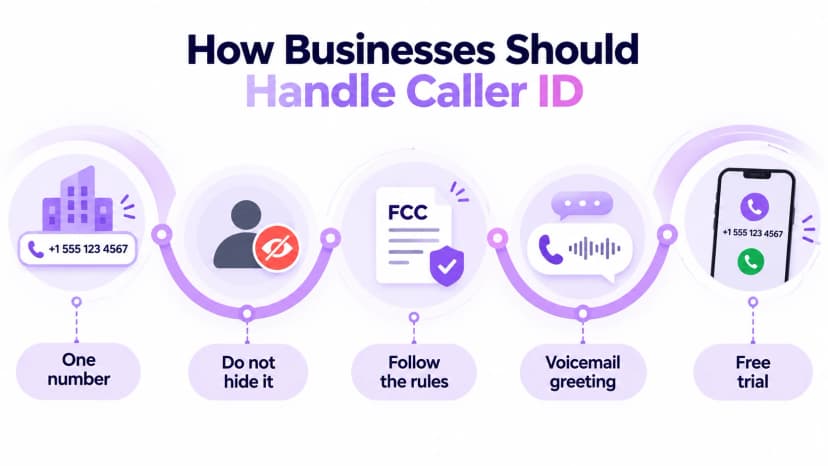
For a business, consistent caller ID builds trust. Customers answer calls from a number they recognize, and many ignore calls from hidden or unfamiliar numbers. If your team calls from personal mobiles, those numbers vary and may appear as unknown, which can lower answer rates, particularly when customers expect a call back. A single business number shown on every outbound call fixes that.
The FCC spoofing guide explains that telemarketers must transmit or display their number, and it describes the rules on misleading caller ID. Read it before you set up outbound calling. Ringflow gives a team one business number on mobile and desktop apps, so customers see the same number each time you call. Set it up once and your whole team uses it.
- One number: show the same business number on every outbound call.
- Do not hide it: customers often ignore hidden numbers.
- Follow the rules: never display a number you do not control.
- Voicemail greeting: say your business name so callers know it is you.
- Free trial: test how your number appears before you switch.
- Staff training: tell your team how to explain caller ID to customers.
- Review: check how your number looks on a few real calls each quarter.
Conclusion
Restricted calls are a normal, legal feature, not automatically a warning sign. The caller chose to hide the number, and you can decide whether to answer, screen, or send it to voicemail. Remember that *67 hides your number for one call, that it does not work for toll-free numbers or 911, and that spoofing is a separate matter.
If you run a business, show your number rather than hide it. Ringflow offers a free trial with a business number, mobile and desktop apps, and consistent caller ID, so you can see how your calls appear to customers before you commit. Review how your outbound calls look today, then decide what to change. Small fixes often make a big difference.
Ready when you are
Want Caller ID Your Customers Trust?
Ringflow gives your team a business number with clear, consistent caller ID on mobile and desktop apps, so customers see your number instead of restricted calls. Start a free trial and test it on your own calls.
Frequently Asked Questions
Your phone shows a label such as Restricted or Private. The FCC says blocking your own number is legal.
Dial *67, then the ten-digit number. It fails for toll-free numbers and 911.
No. They hide numbers, showing nothing false.
Turn on Screen Unknown Callers in iPhone Phone settings.
Call authentication that helps stop illegal spoofing.